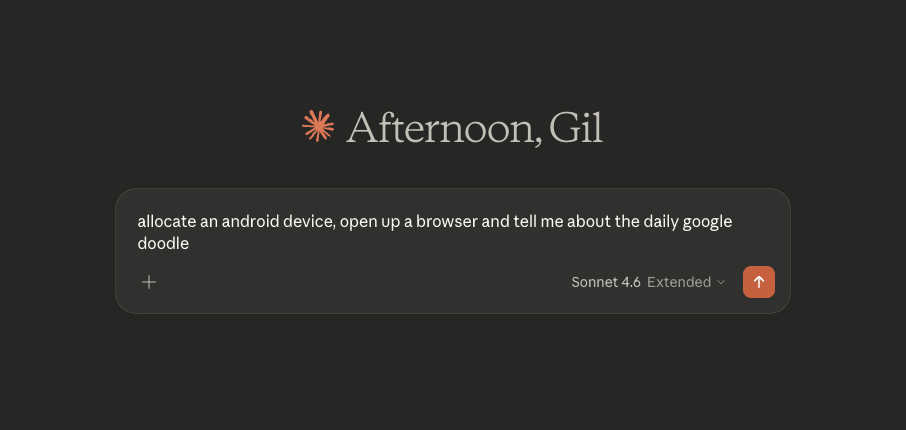

Claude (Web & Desktop App)
Follow these instructions to connect Mobile Fleet MCP to your Claude Web and Claude Desktop. There is nothing to download.
-
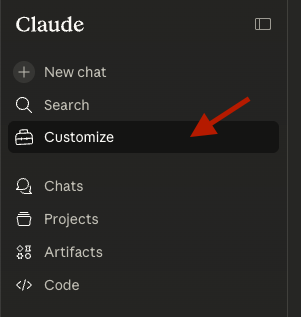
In left sidebar, click “Customize”
-
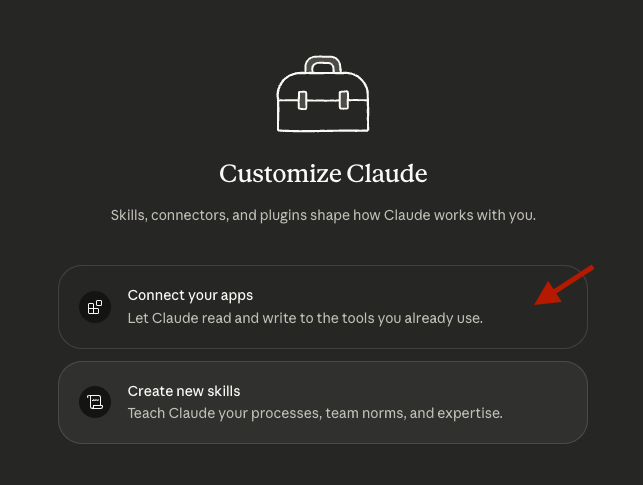
Select “Connect your apps”
-
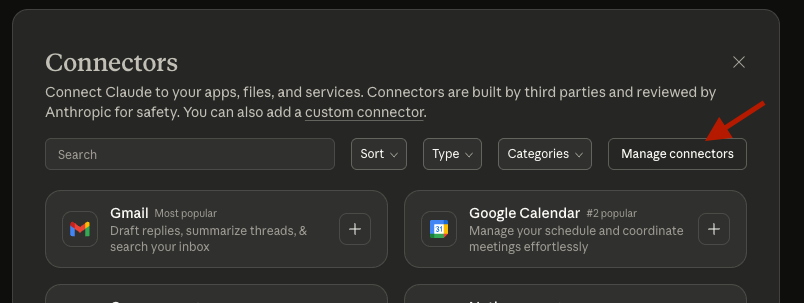
Click on “Manage connectors”
-
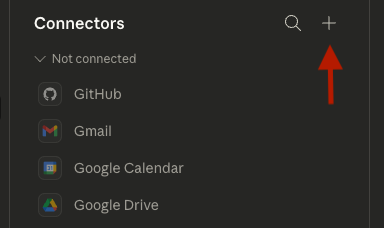
Click on “Plus” to add a new connector
-
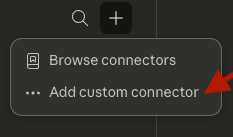
Select “Add custom connector”
-
Type “mobilefleet” in name field, and
https://app.mobilenexthq.com/mcpin url, click “Add”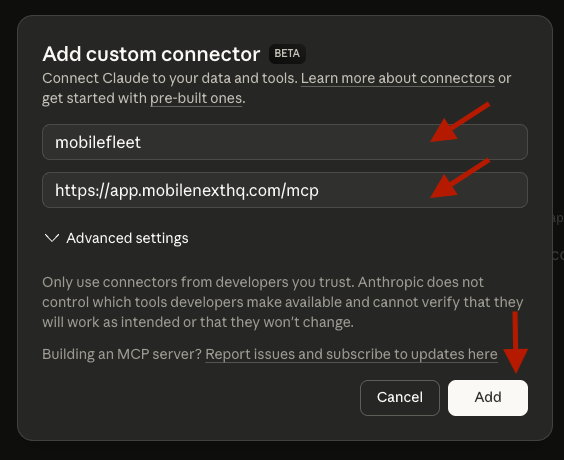
-
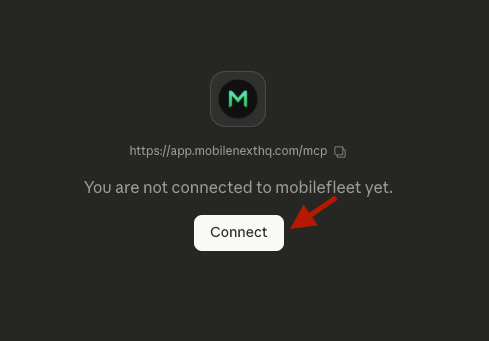
Lastly, click on “Connect” to start the authorization flow
-
You have successfully connected Claude with Mobile Fleet ✅